
FMS Explorer screens can convey large quantities of measurement data, and several controls can be open simultaneously within your workspace. A screen can be customized to suit your purposes, but depending on the amount of information you prefer to view simultaneously, your data viewing needs may be better accommodated using multiple monitors.
The following samples illustrate how customized each screen setup can be.
Sample A
Sample B

In actual usage, you will likely use a hybrid of arrangement styles to customize your workspace, depending on your particular data viewing needs. There are innumerable workspace layouts possible.
When you use multiple monitors for viewing FMS Explorer, keep the following behaviors in mind.
Use a combination of dragging, docking, resizing, and floating FMS Explorer controls to arrange a single monitor efficiently. The same options can be applied utilizing multiple monitors. As always, be sure to save your workspace before closing FMS Explorer.
Some approaches to viewing your data on multiple monitors are described in the following examples.
See Customizing the View for more information about customizing options.
See Using the File Menu for more information about saving your workspace.
Note: The following examples are meant to be illustrative rather than prescriptive. There are innumerable variations possible for customizing the way you view data. Your implementation can be customized to suit your particular requirements.
In this case, you may wish to spread the FMS workspace across three monitors, primarily using the dragging option to subdivide your workspace laterally. This approach supports accessing multiple controls per monitor sequentially, and using the control tabs to quickly switch between views.
Open FMS Explorer, and drag the screen to extend across your multiple monitors. Open all desired controls. Space the controls to support your work. You could group primary data overview functions, e.g. Dashboard, Exceptions, Balance, and Node Chooser controls, on one screen, place primary work controls, e.g. History Grids and Raw Data, on a second screen, and support controls, e.g. History Graphs, Config, Alarm, and any other desired reference controls, on a third screen. There are a myriad of possibilities.
This monitor contains a Node Chooser control pinned to the left and a Dashboard control on the right, tabbed with Exceptions and Balance controls. With this arrangement you can maintain a large data viewing area to get a broad overview for recognizing patterns and prioritizing areas for further investigation. Once a Node of interest is identified, you can set it as the Session Node to drive any other controls that are linked to the Session Node, on any monitor, in order to further investigate and refine the data.
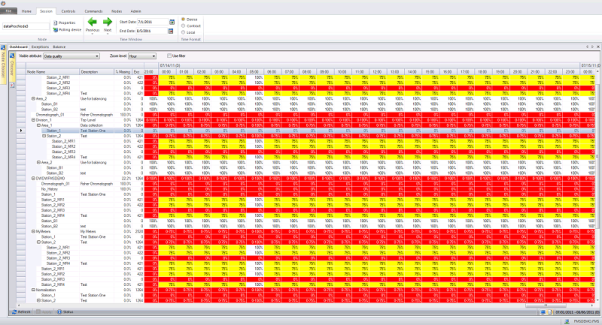
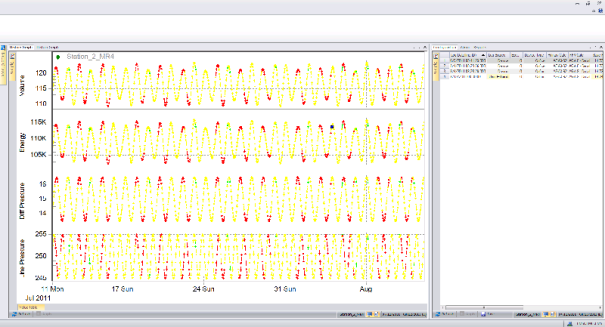
The next monitor contains tabbed History Grid and Raw Data controls for two sets of data. With this arrangement you can keep controls open for both a Session Node and another reference Node simultaneously, in order to drill down into the data, and quickly compare the data sets.

A third monitor contains split panes, with all controls linked to the Session Node, to allow immediate presentation of related information. The first pane contains tabbed History Graph controls, allowing quick sequential access to different sets of process variables for analysis. The additional pane contains a Config, Alarm, and any other control desired, so that you can quickly refer to additional data.
In another case, you may wish to keep your FMS screen on one monitor, using primarily docking options, and place additional controls on adjacent monitors, using primarily floating options. This approach supports accessing multiple controls per monitor simultaneously, and uses docking and floating options to achieve desired divisions of both horizontal and vertical space within each screen.
Open FMS Explorer, and open all desired controls. Your primary screen might house the FMS Explorer window along with a Node Chooser, and Balance, Close, and PPA admin controls. You could then float chosen primary controls on a secondary screen, e.g. Dashboard, Exceptions, History Graph, and History Grid, and use a tertiary monitor for viewing additional controls in support of your current work. There are endless variations possible.
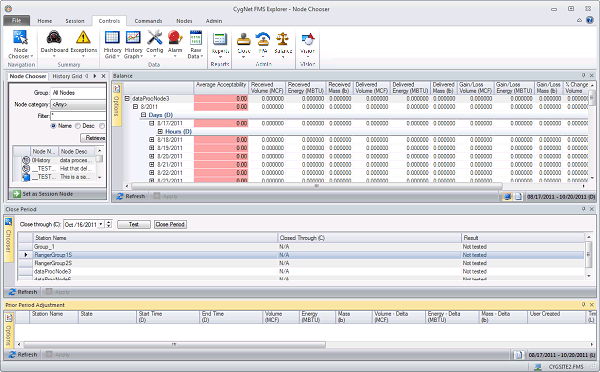
This monitor contains administrative and reference data viewing functions. It houses a Node Chooser control on the upper left of the data window, tabbed with several other desired controls, so that you can quickly change the session Node, or access additional controls for reference. PPA, Close Period, and Balance controls have been docked individually, utilizing a horizontal format. In this way, you can view all selected admin controls simultaneously.
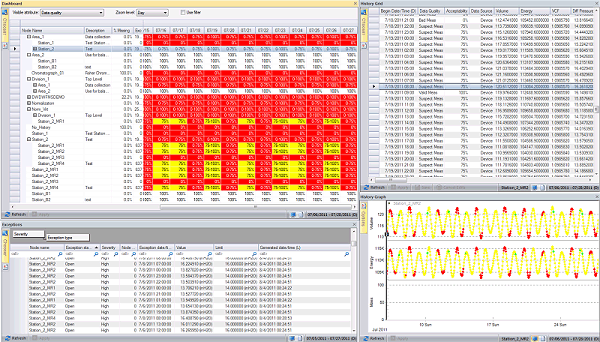
The next monitor contains Dashboard, Exceptions, History Grid and History Graph controls in a mixed horizontal/vertical split, achieved by floating the controls. In this way, you can tailor the screen space for each individual control as desired to view selected data ranges. Individual controls can be quickly dragged and enlarged for specific work and then placed back into position.
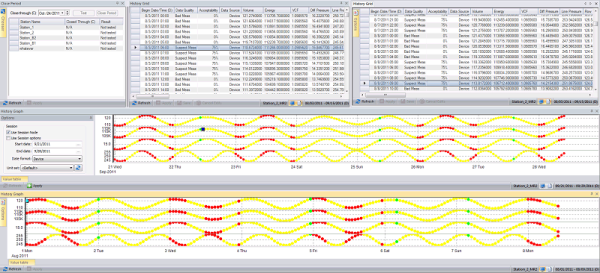
A third monitor contains several controls arranged in subdivided horizontal layers. The first contains a Close Period and two History Grid controls, while the other panes each contain History Graph controls for different parameters. In this way, you can directly compare different views simultaneously.

|
|
|

